Schedule Email/SMS
What this does
This guide explains how to schedule email or sms in Franmantra CRM.
Before you start
- Sign in to Franmantra with a role that has permission to use this area.
- Confirm you are working in the correct Sub-account before making changes.
Steps
Scheduling a message allows you to send emails or SMS at the right time without doing it manually. This helps you plan your communication in advance and stay organized.
Steps to Schedule a Message
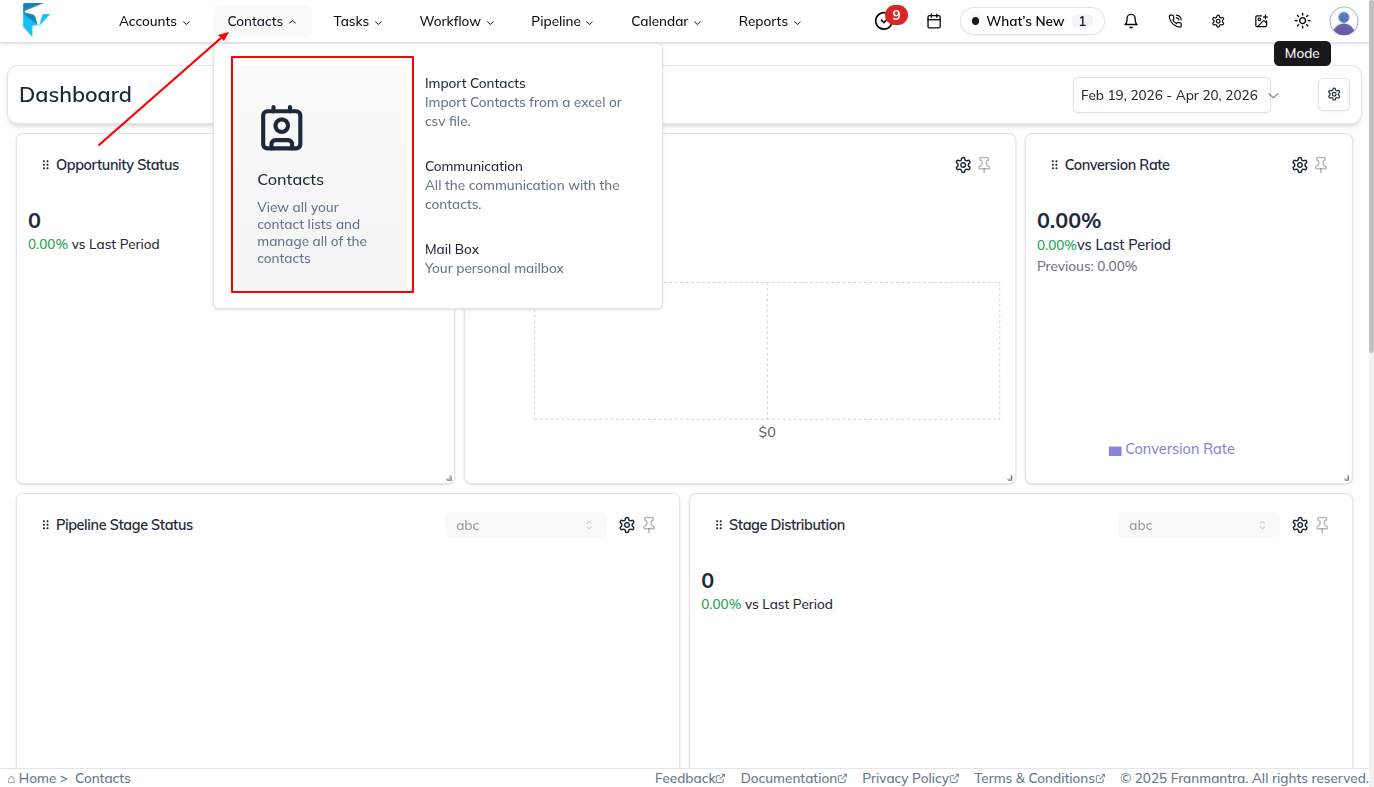
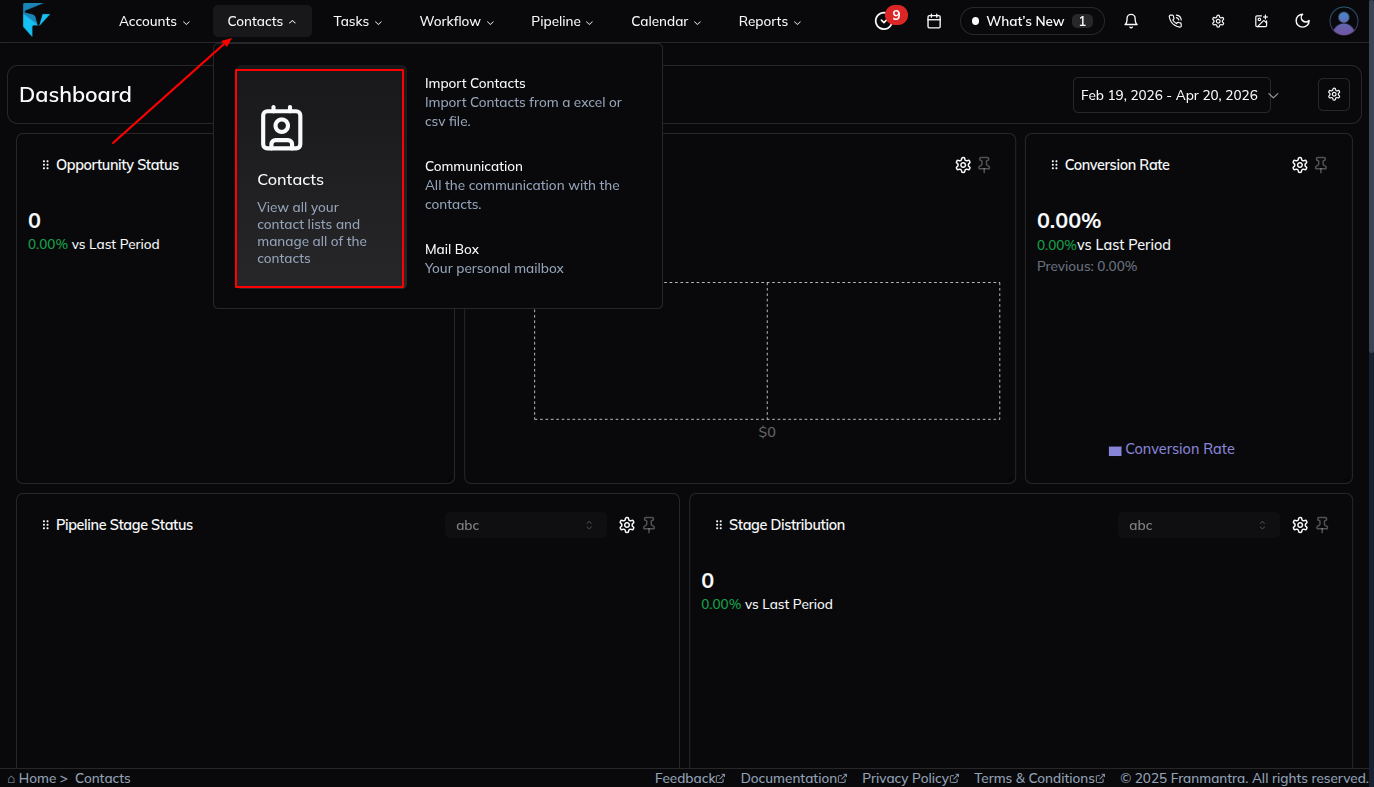
- Go to the Contact Page From any page, move to the header menu and hover over the Contact option. A dropdown menu will appear. Click on Contact to open the Contact page.
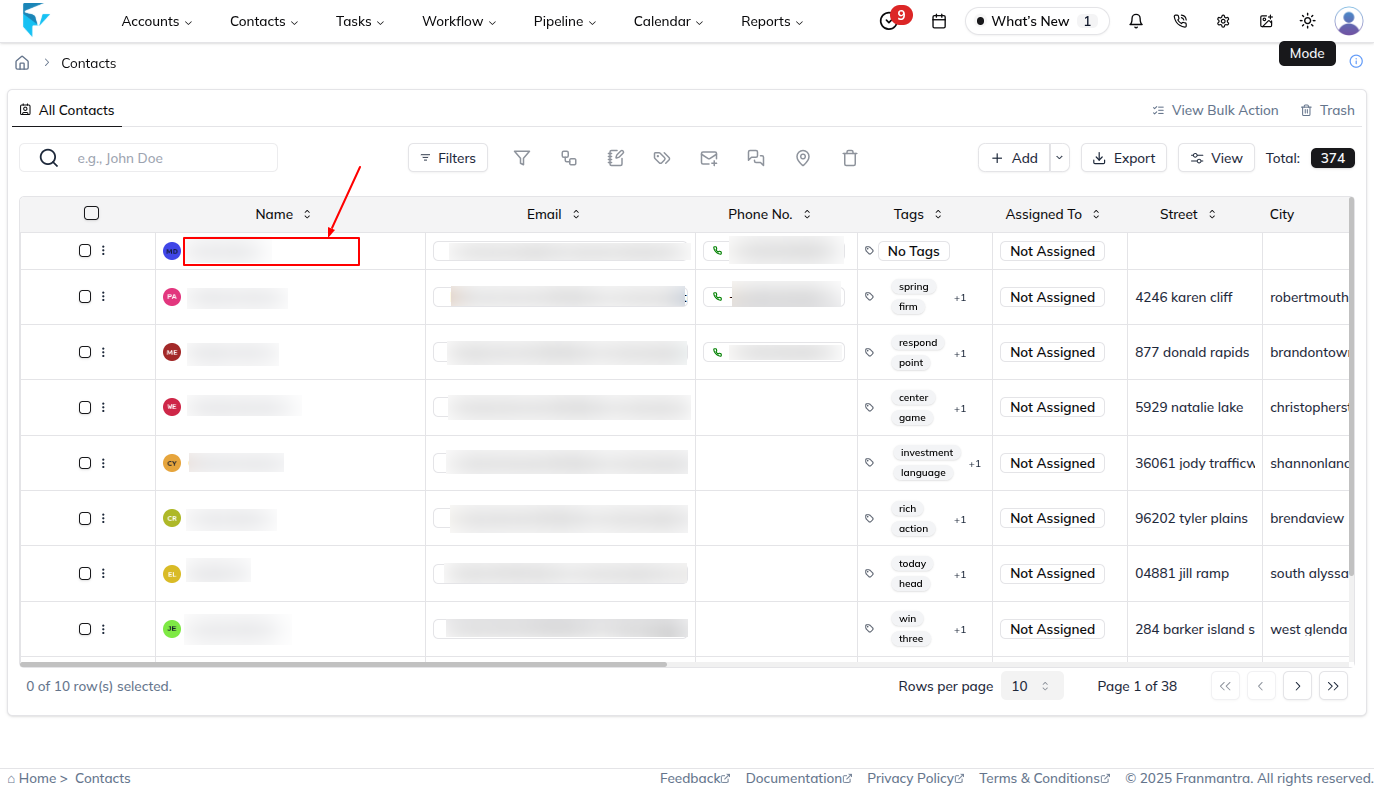
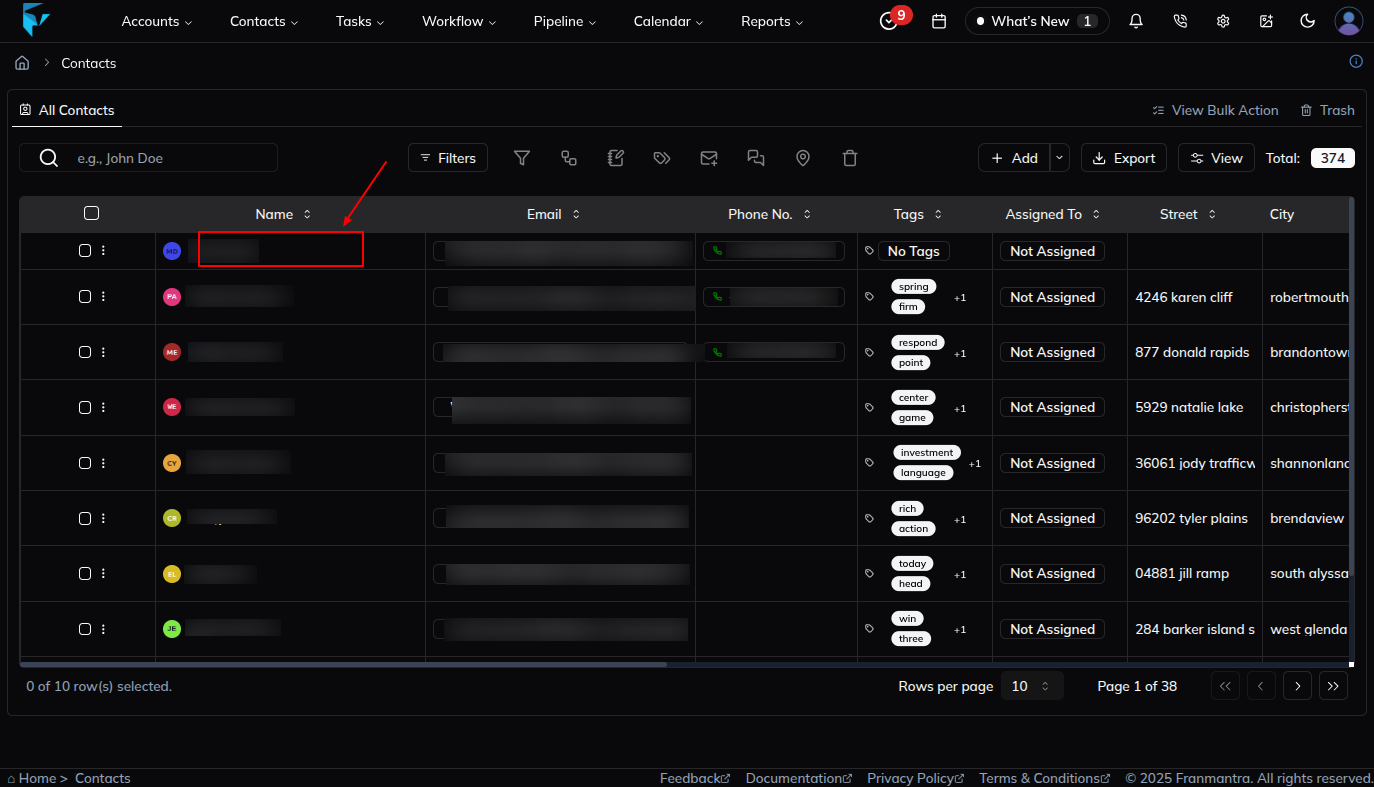
- Select a Contact On the Contact page, choose the user you want to send a message to by clicking on their name. This will open the user’s detail page.
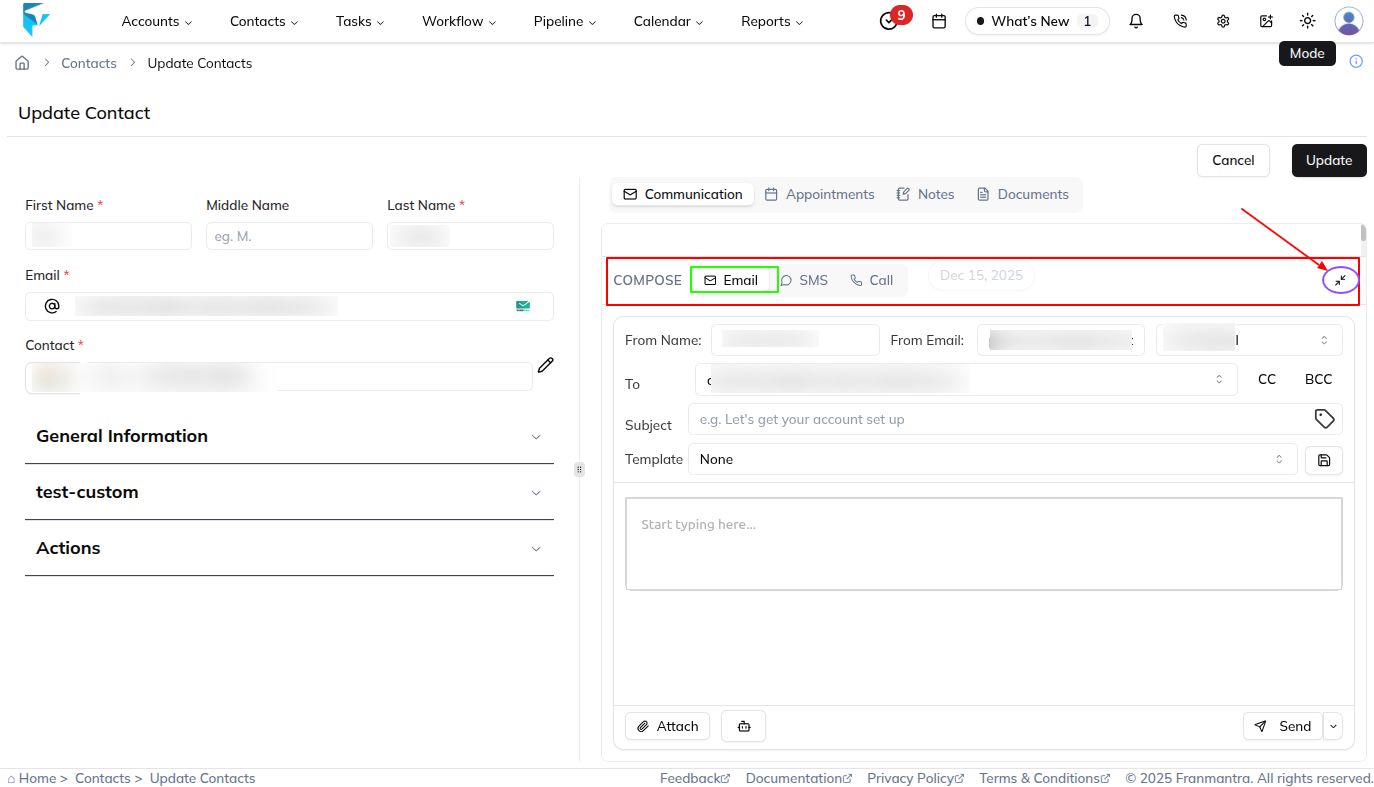
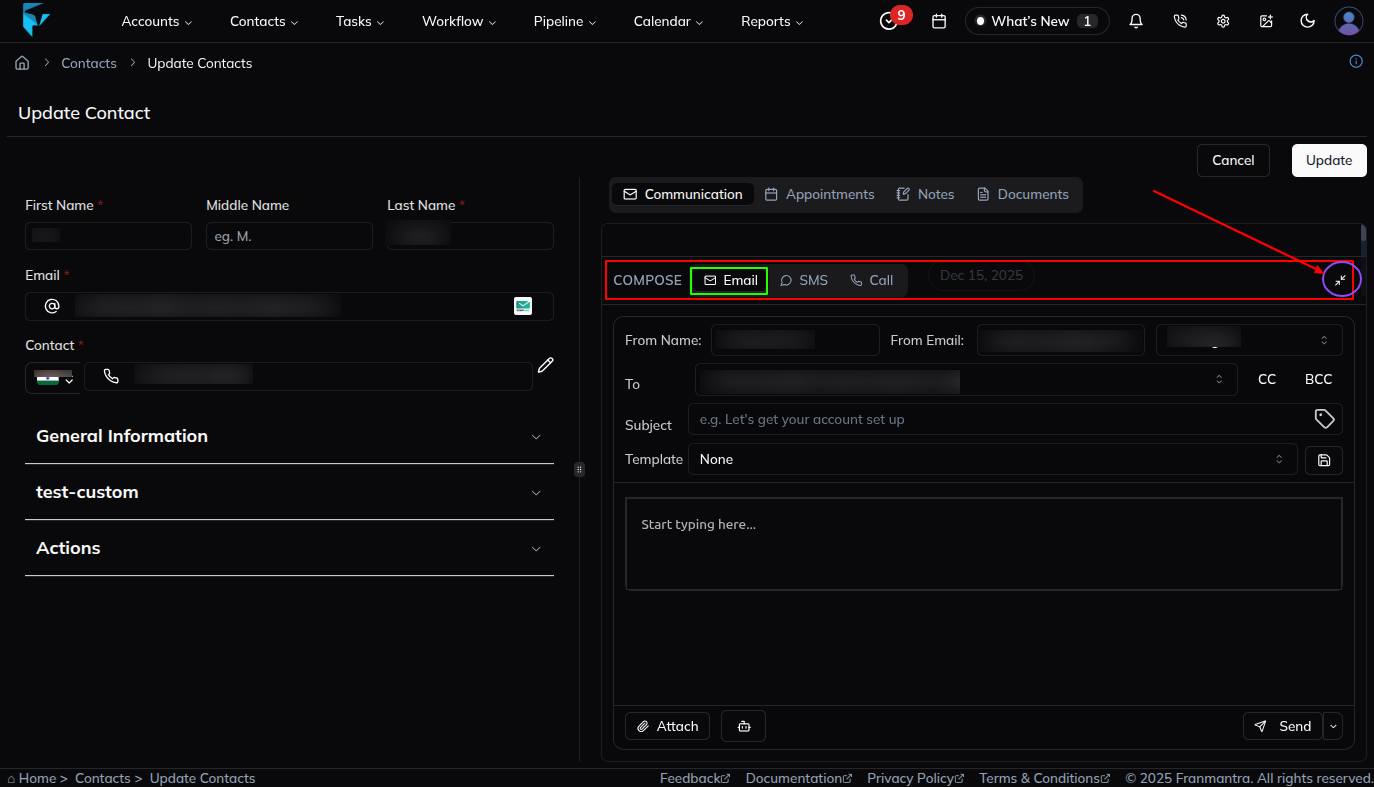
- Open Communication Options Once the user page is open, you will see communication options like Email, SMS, and Call.
- Choose Message Type Select either Email or SMS, depending on what you want to send.
- Set Up Your Message
-
For Email: A mail setup will appear where you need to fill in the subject and message content. The receiver will already be selected as the chosen user.
-
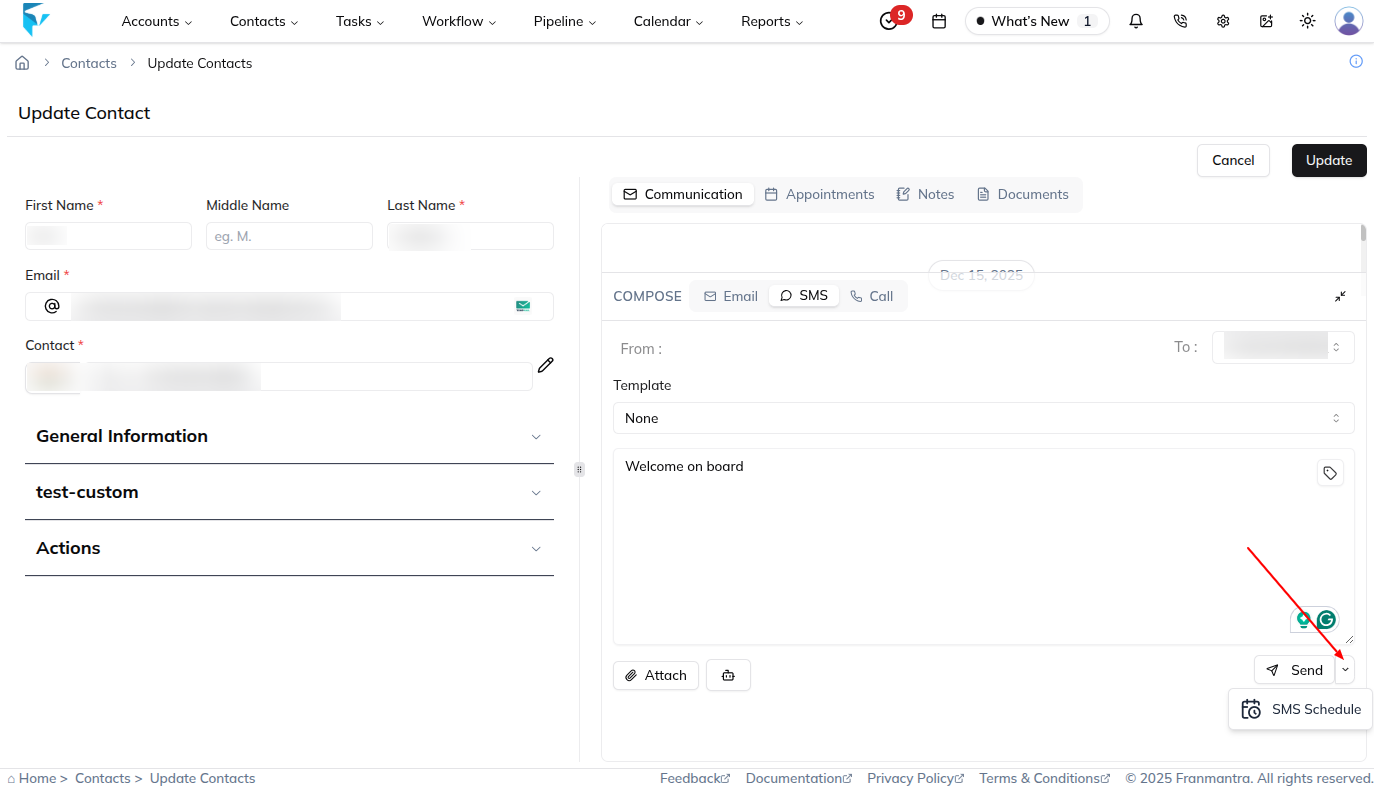
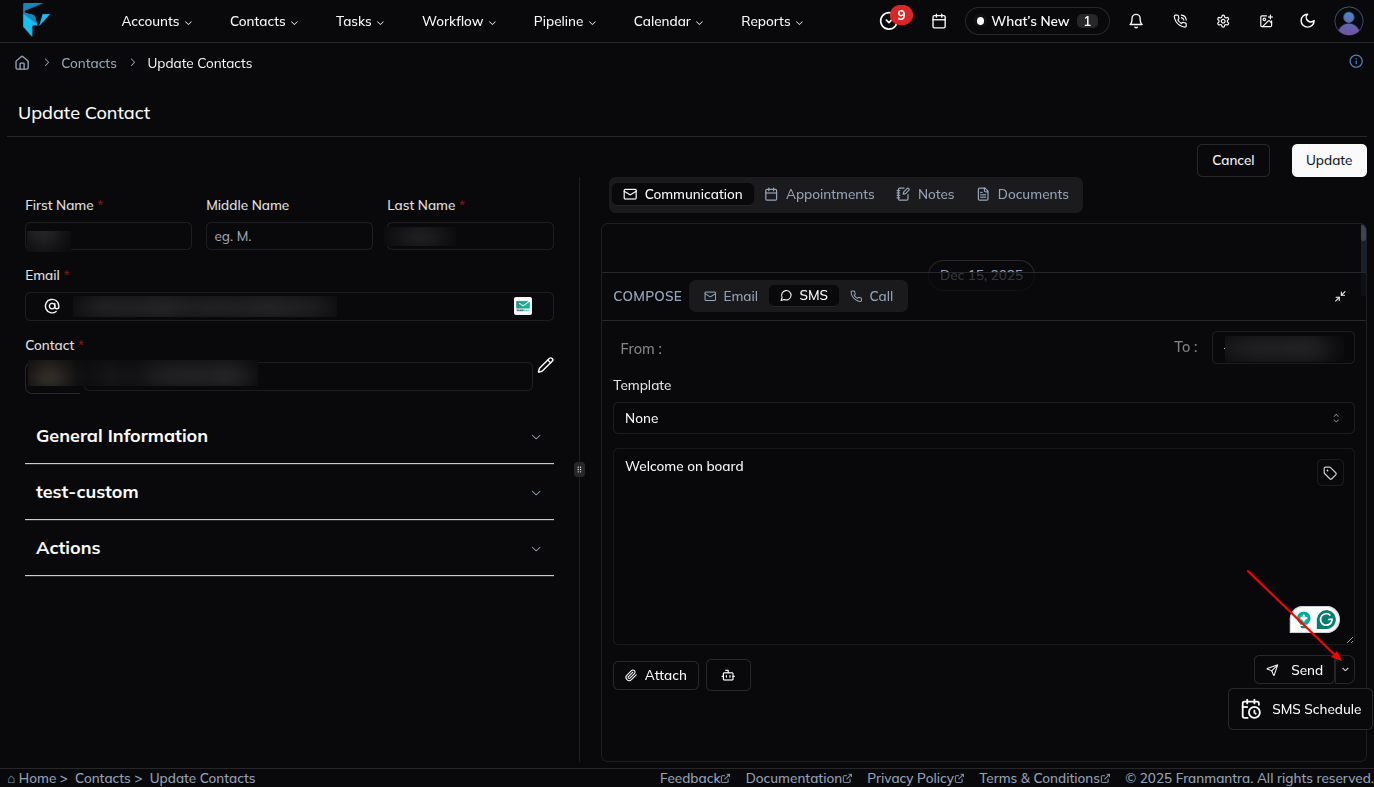
For SMS: An SMS setup will appear. You can select a template (if needed) and write your message.
-
If you select an email template, review the template preview card and click Preview to open the full rendered preview before sending or scheduling the message.
-
-
Choose the Schedule Option Instead of clicking the Send button directly, look for a dropdown option next to it. Click on it and select Schedule Email/SMS.
-
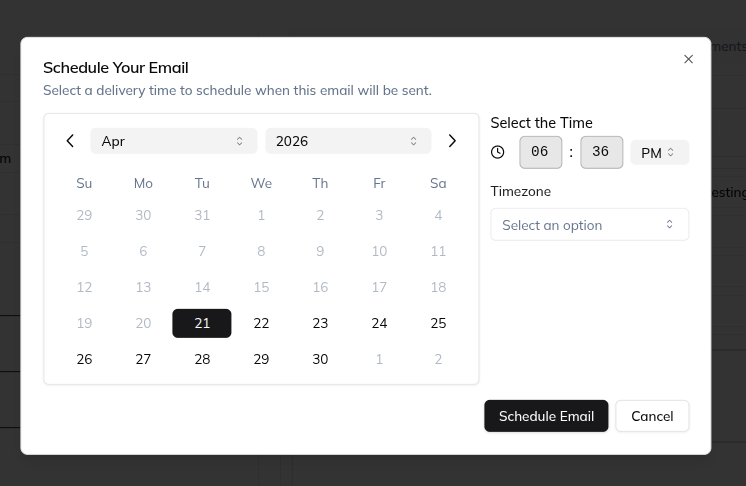
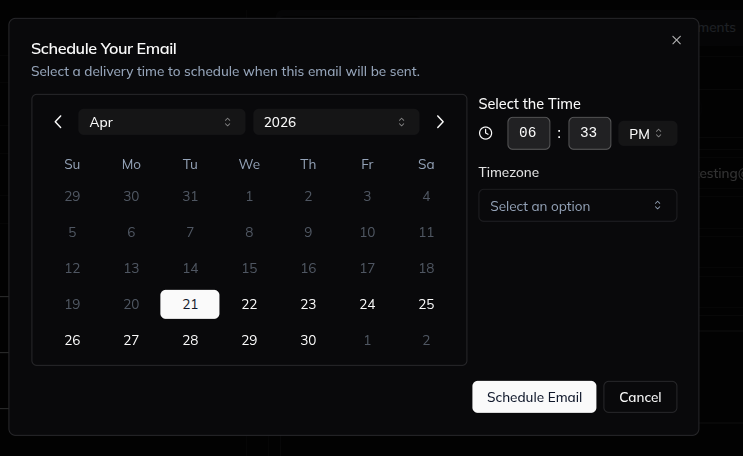
Set Date and Time A scheduling form will appear. Choose the date, time, and timezone for when you want the message to be sent. Then confirm your action to save it. for Email and SMS both form are same
Managing Scheduled Messages
After scheduling, your message will automatically appear in the Schedule Page, where you can manage it anytime. You can open and view the details or delete it before it is sent.
Example: If you want to send a promotional SMS to your customers in the evening, you can create it in the morning and schedule it. The system will automatically send it at the right time, ensuring you stay organized without manual effort.
✅ Your automated communication is now set up and ready for delivery.
Result
The change is saved in Franmantra CRM and is available to users with the right permissions.
Troubleshooting
- If you cannot see the option, check your role permissions or ask an admin to update your access.
- If the update does not appear immediately, refresh the page and confirm you are in the correct Sub-account.