Reschedule Email or SMS
What this does
This guide explains how to reschedule email or sms in Franmantra CRM.
Open a scheduled message and pick a new date and time for it.
Before you start
- Make sure the email or SMS is already scheduled.
- Make sure you can open the correct contact record.
Steps
- Open the Contact page from the header menu.
- Click the contact whose message you want to change.
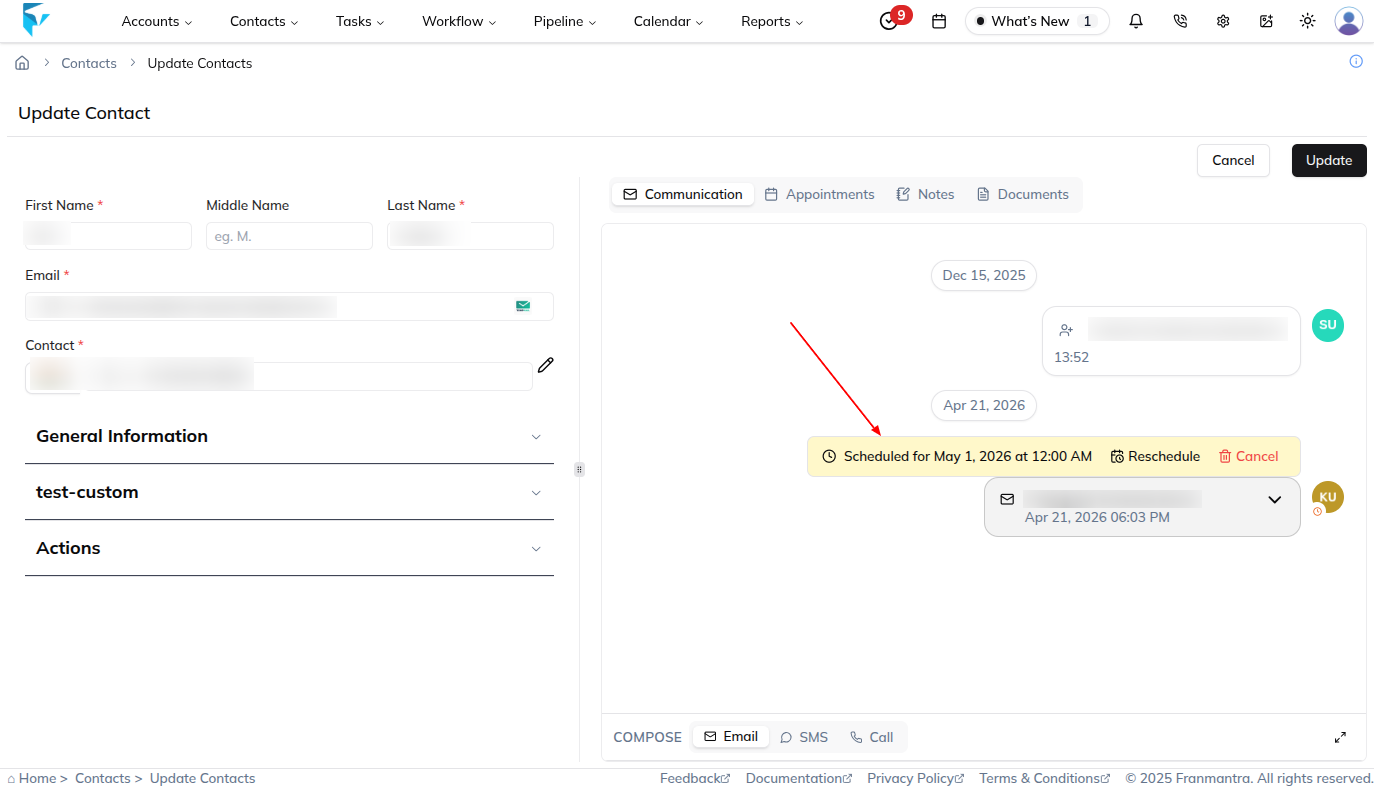
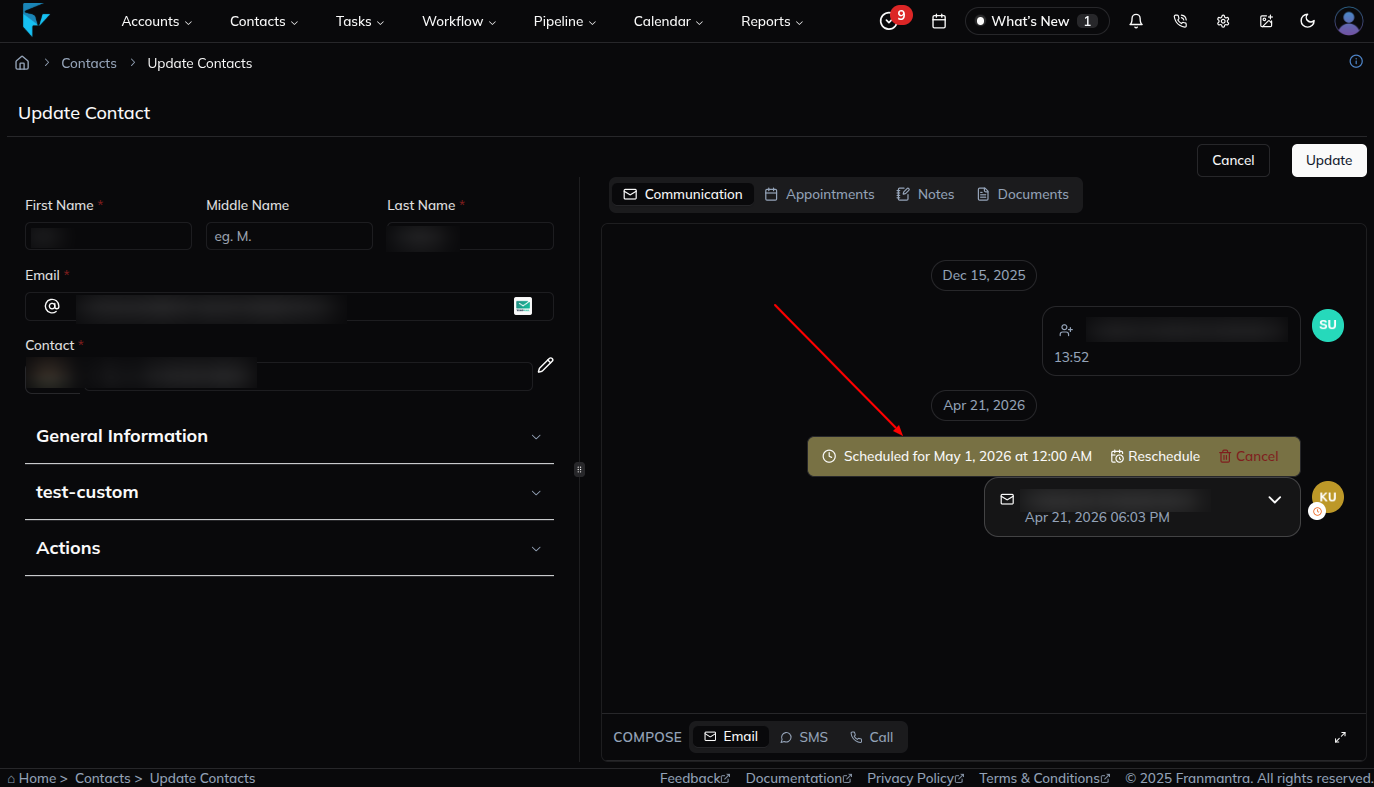
- Find the scheduled email or SMS in the contact's communication history.
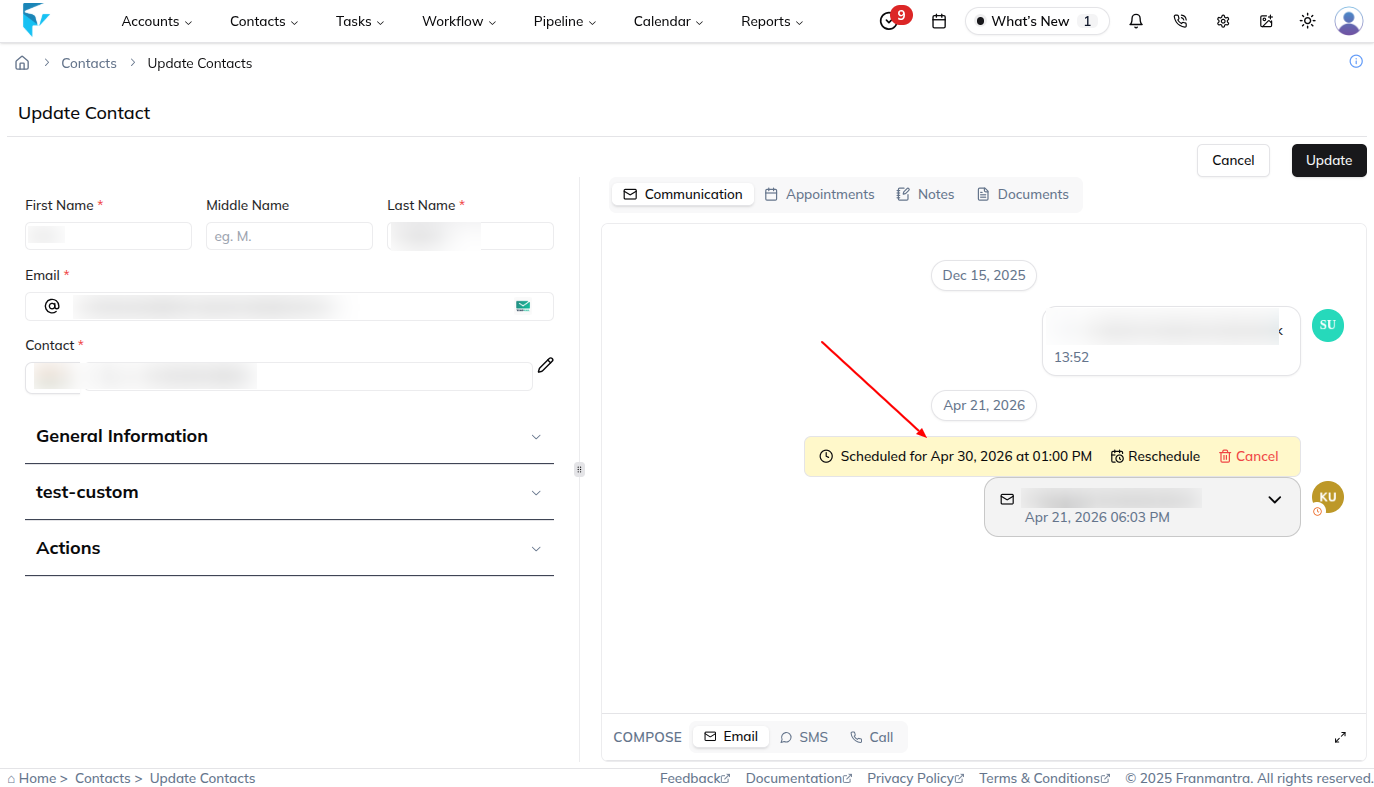
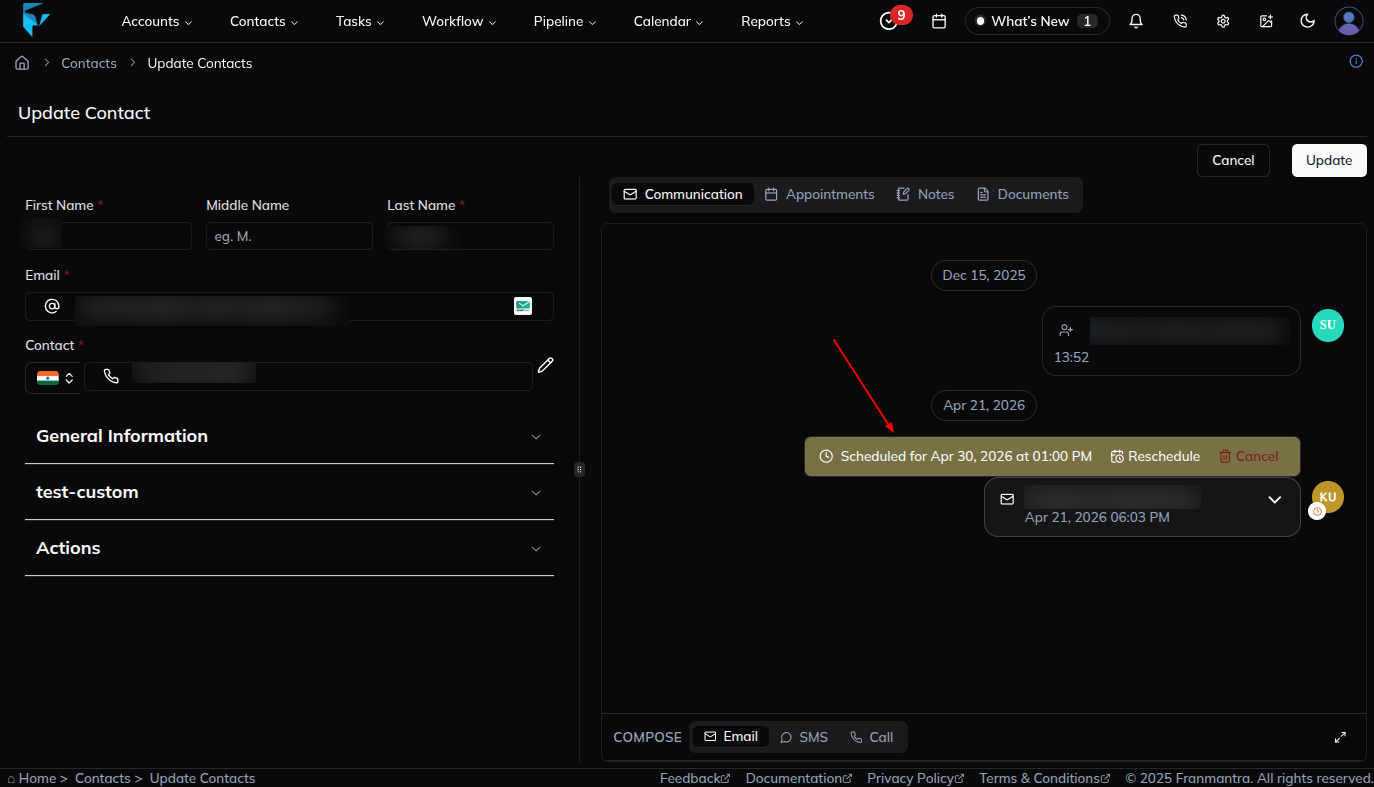
- Click the Reschedule option in that thread.
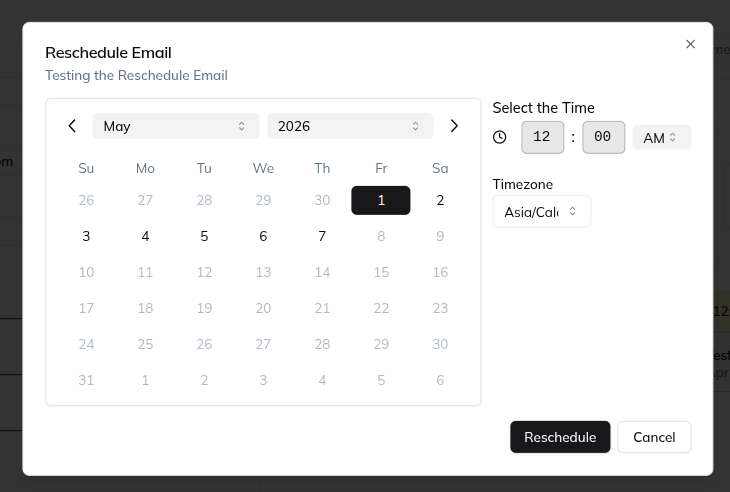
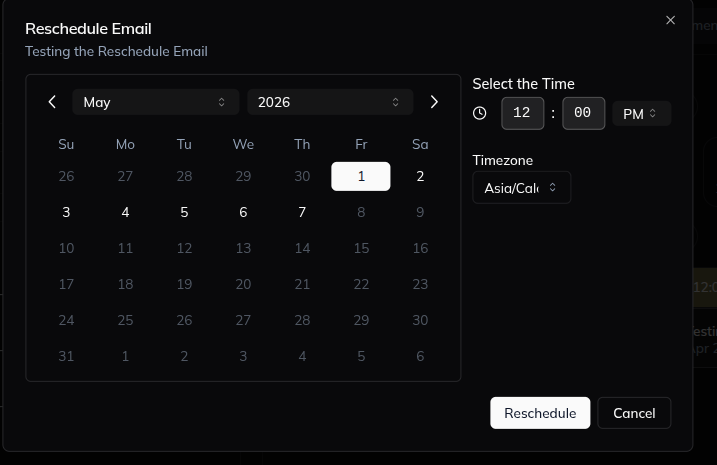
- Choose the new date, time, and timezone.
- Confirm the new schedule.
What happens next
The message moves to the new time on the Schedule page. You can still edit or delete it before it is sent.
Notes
- Use this when you want to change the send time without writing the message again.
- Check the timezone before you confirm.
Result
The change is saved in Franmantra CRM and is available to users with the right permissions.
Troubleshooting
- If you cannot see the option, check your role permissions or ask an admin to update your access.
- If the update does not appear immediately, refresh the page and confirm you are in the correct Sub-account.